
- Aurora
- Product tour
See Aurora in action
These are real screens from Aurora Console, taken with a fictional demo school called Greenfield Demo School. No student, family or amount in them is real. Each screen says whether it is in use at a school today, built and rolling out, or next.
Overview In use
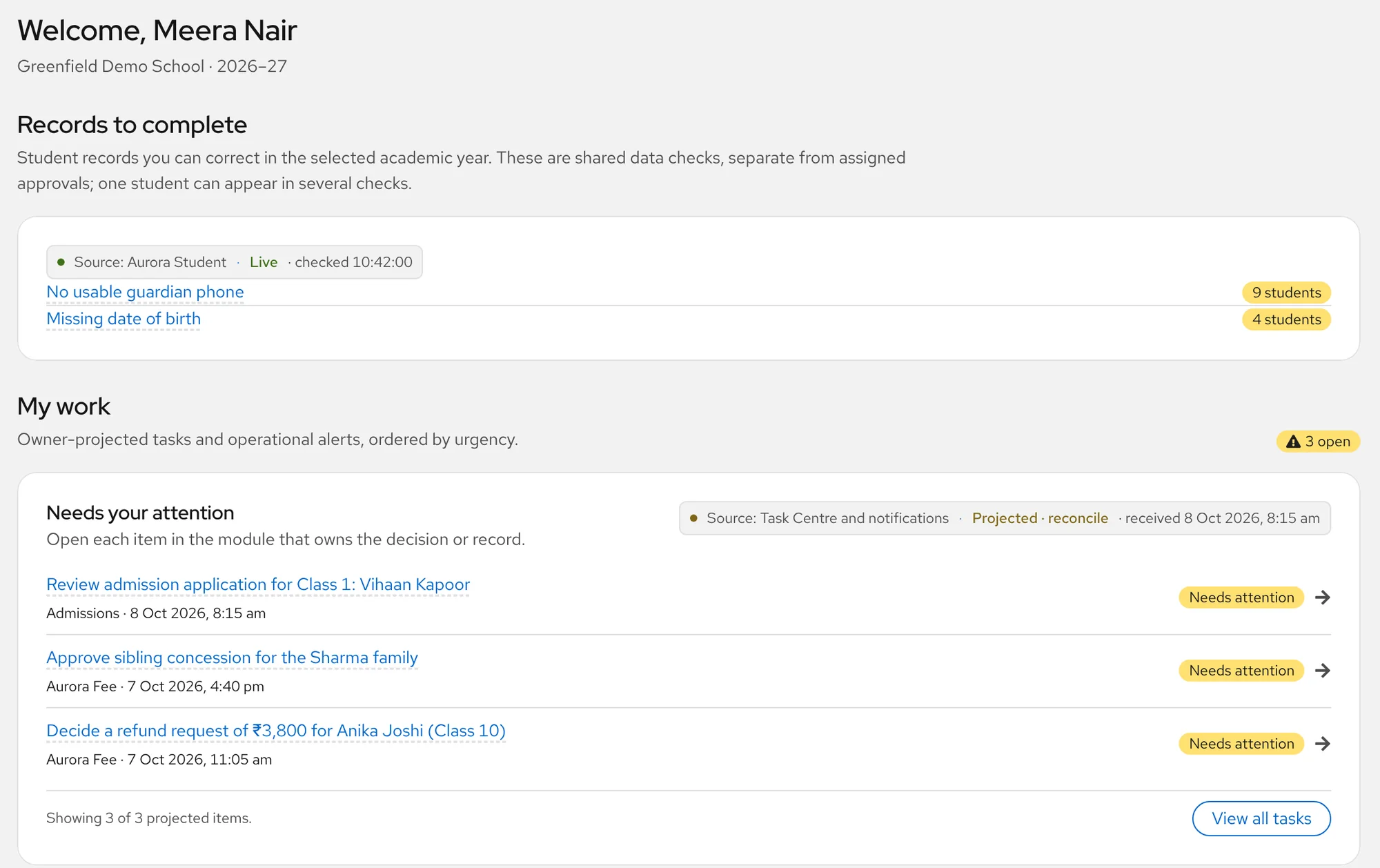
Start the day with what needs a person
The overview opens on the work waiting for you, such as an admission to review, a sibling concession or a refund request, and on records that need completing.
- My work lists tasks waiting for a decision, and each one opens in the part of Aurora that owns it
- Records to complete shows student records with gaps, such as no usable guardian phone or a missing date of birth Built, rolling out
- Every number shows which part of Aurora it comes from
Students In use
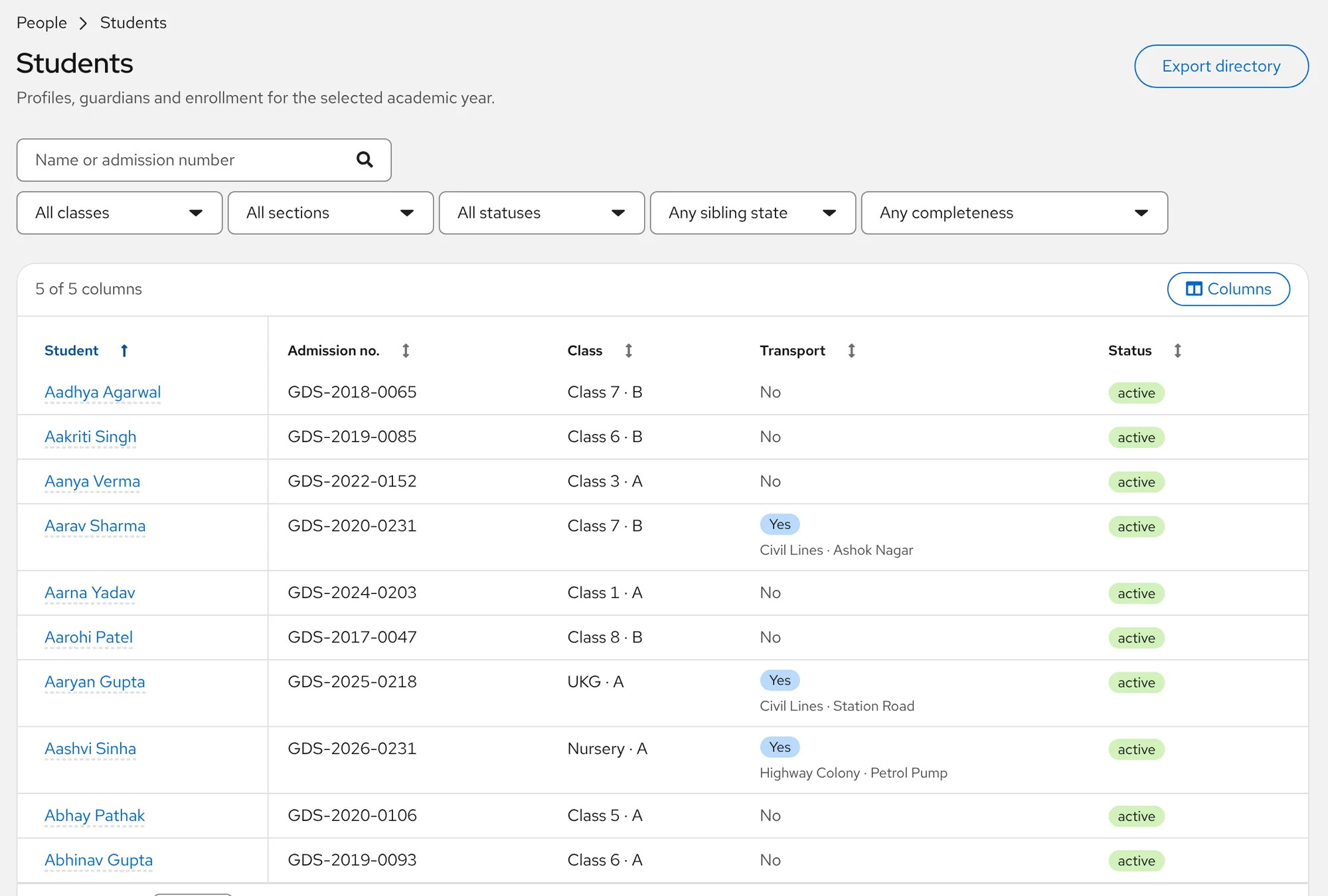
Find any student in a moment
The students list searches by name or admission number and narrows by class, section and status.
- Filter by class, section, status, sibling state and how complete the record is
- See who rides the bus and at which stop
- Export the directory
Student profile In use
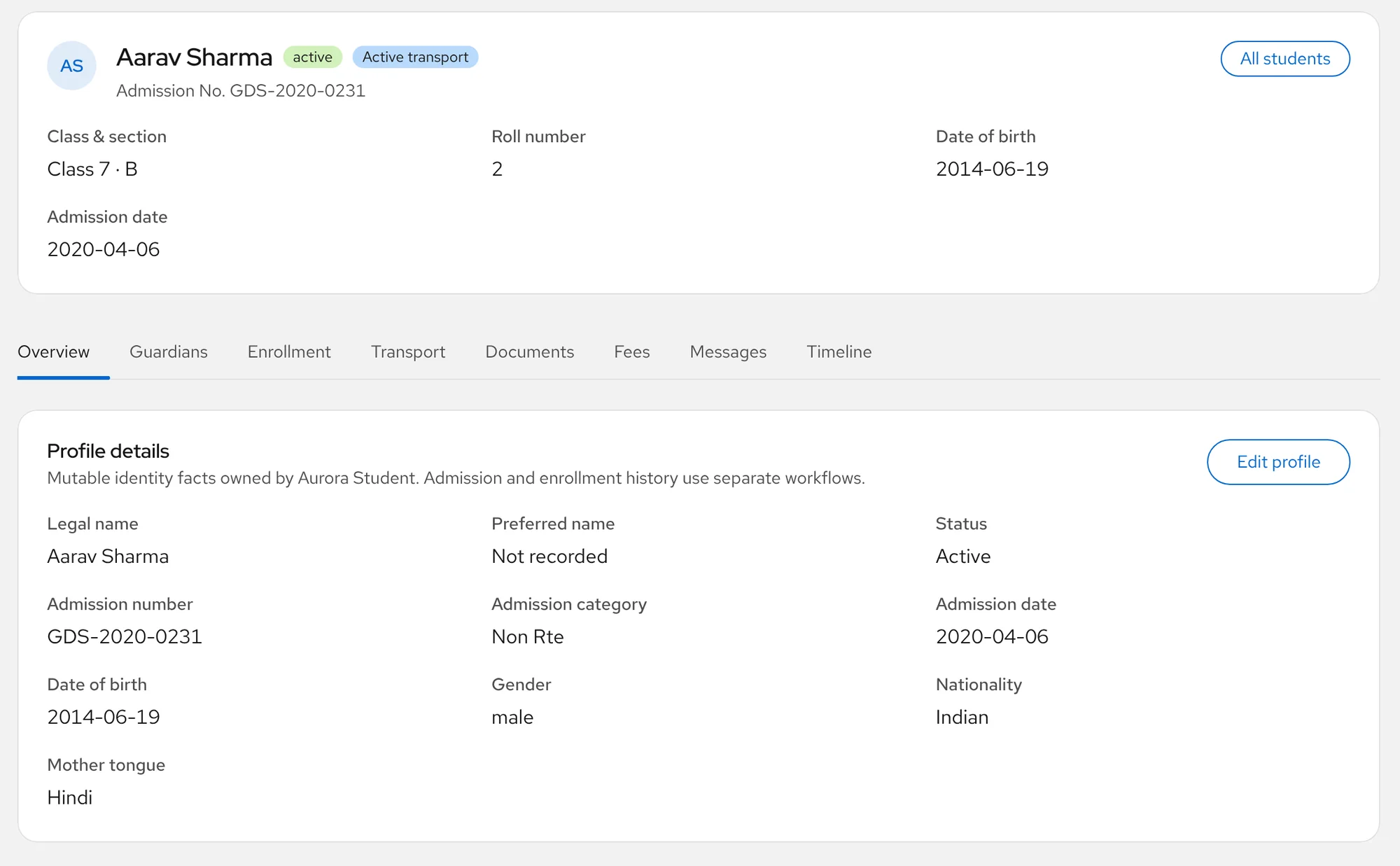
One record for everything about a student
Class, guardians, enrollment history, transport, documents and fees sit on one profile, with a timeline of what changed.
- Tabs for overview, guardians, enrollment, transport, documents, fees, messages and timeline
- Aadhaar, PEN and APAAR are held outside the ordinary profile; only the last four digits show
- Edit the profile where your role allows it
Inactive students Built, rolling out
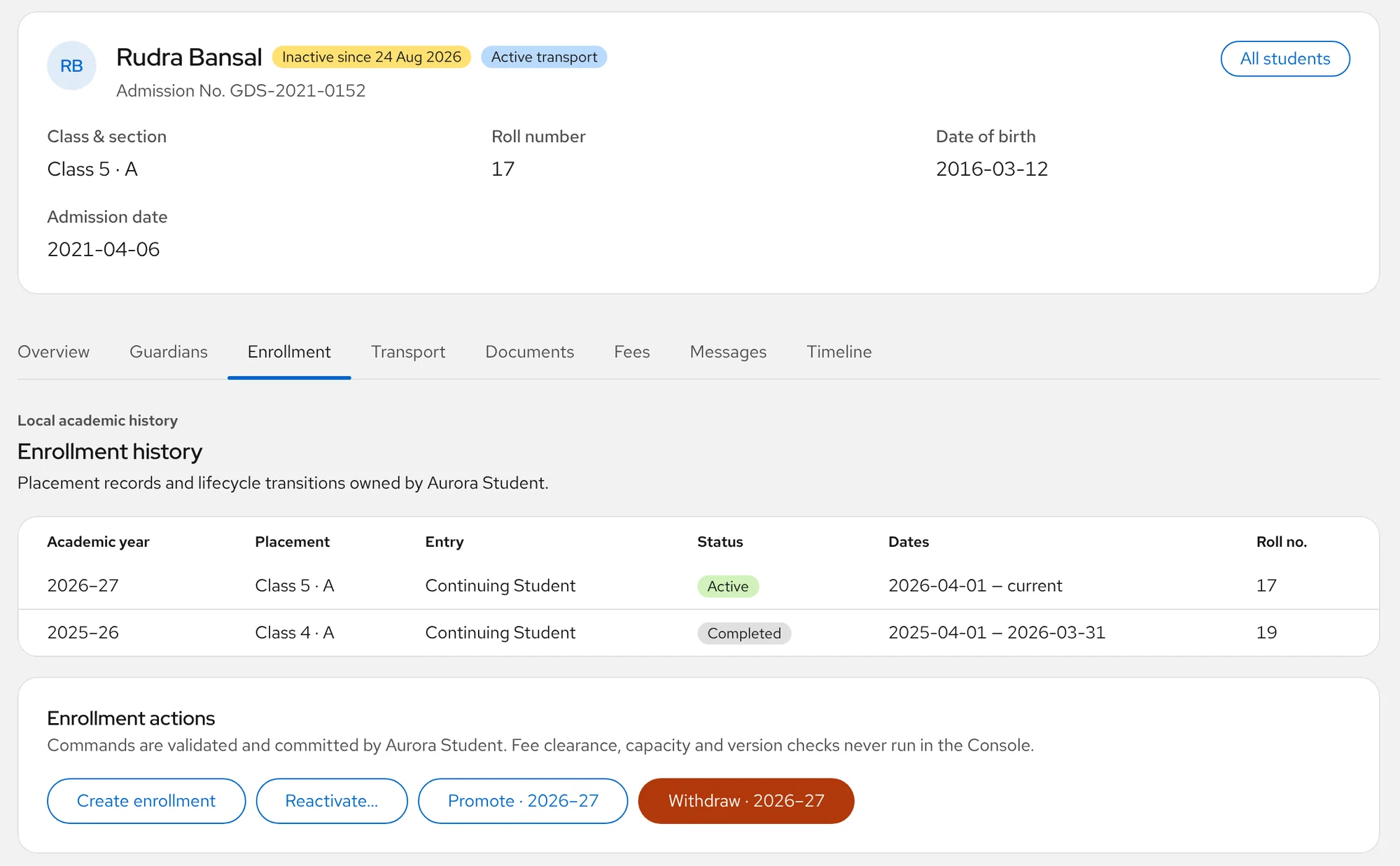
A child who stopped coming, with no transfer certificate yet
Mark a student inactive from a date. They keep their class, and the school can reactivate them later.
- From that date no new monthly or transport fees are raised
- Bills already raised stay payable, and the student still appears at the fee counter
- Reactivating does not back-charge the months in between
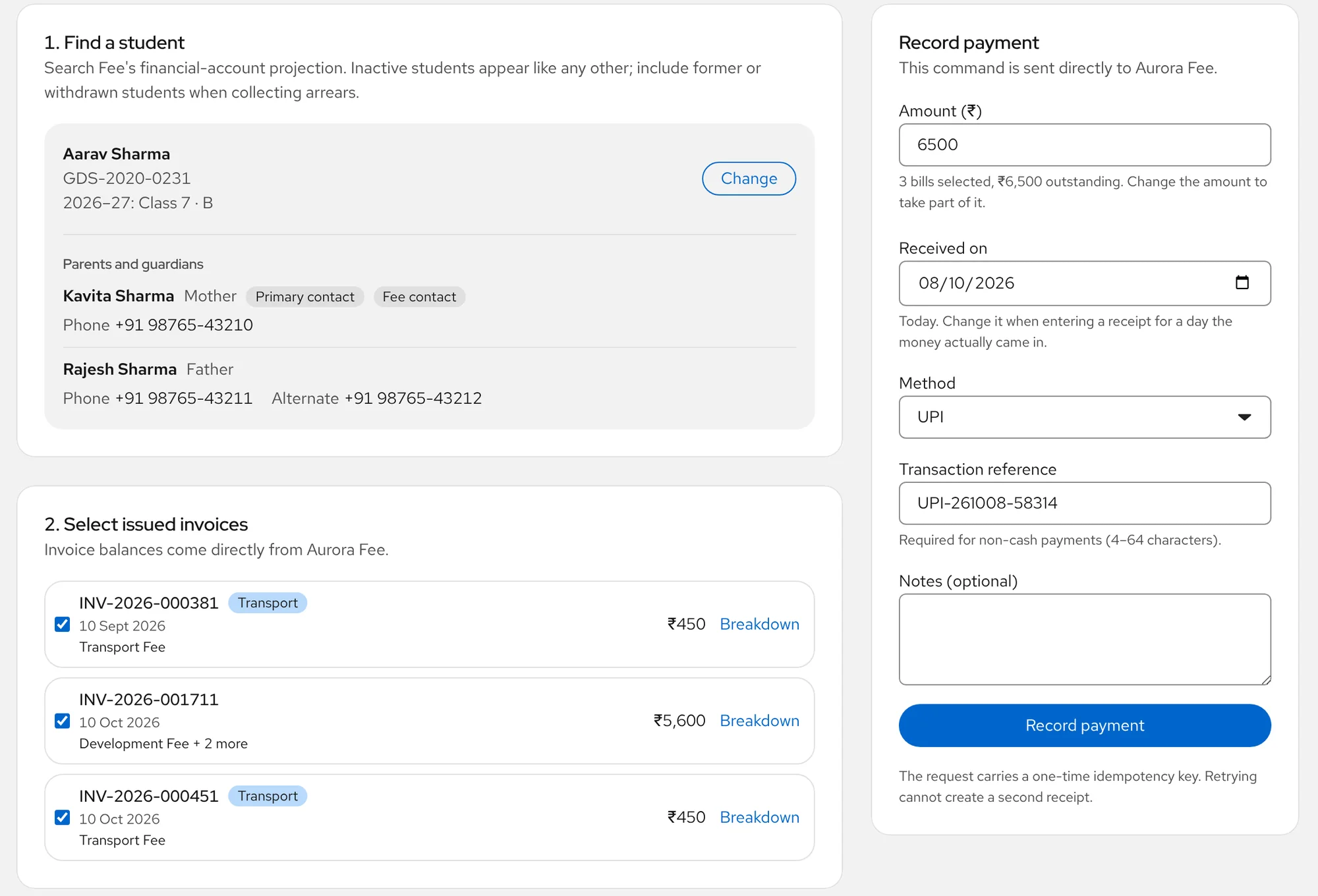
Fee counter In use
Take a fee at the counter in a few clicks
Find the student, tick the issued bills, record the payment and give the receipt. The counter is built for the clerk at the shared office computer.
- The student's guardians and their phone numbers are shown beside the bills
- Cash, UPI, cheque and bank payments; a payment that is not cash needs a reference
- A retried request cannot create a second receipt
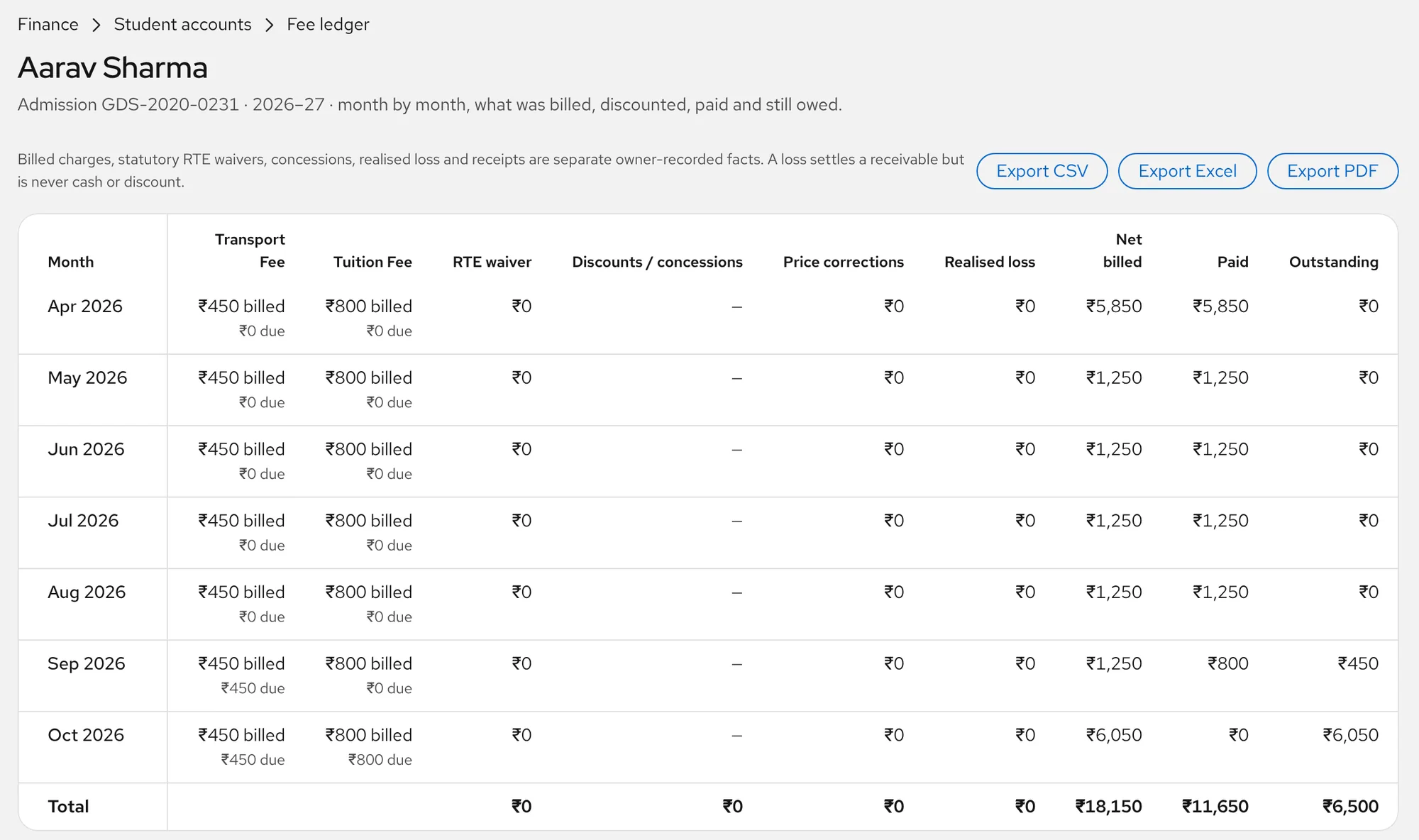
Student statement In use
Answer "what do I owe?" from one screen
A student's account month by month and fee head by fee head: billed, discounted, paid and still owed.
- RTE waivers, concessions and price corrections have their own columns
- Export the statement as CSV, Excel or PDF for the parent who asks
- The same balance the counter uses; no screen works it out again
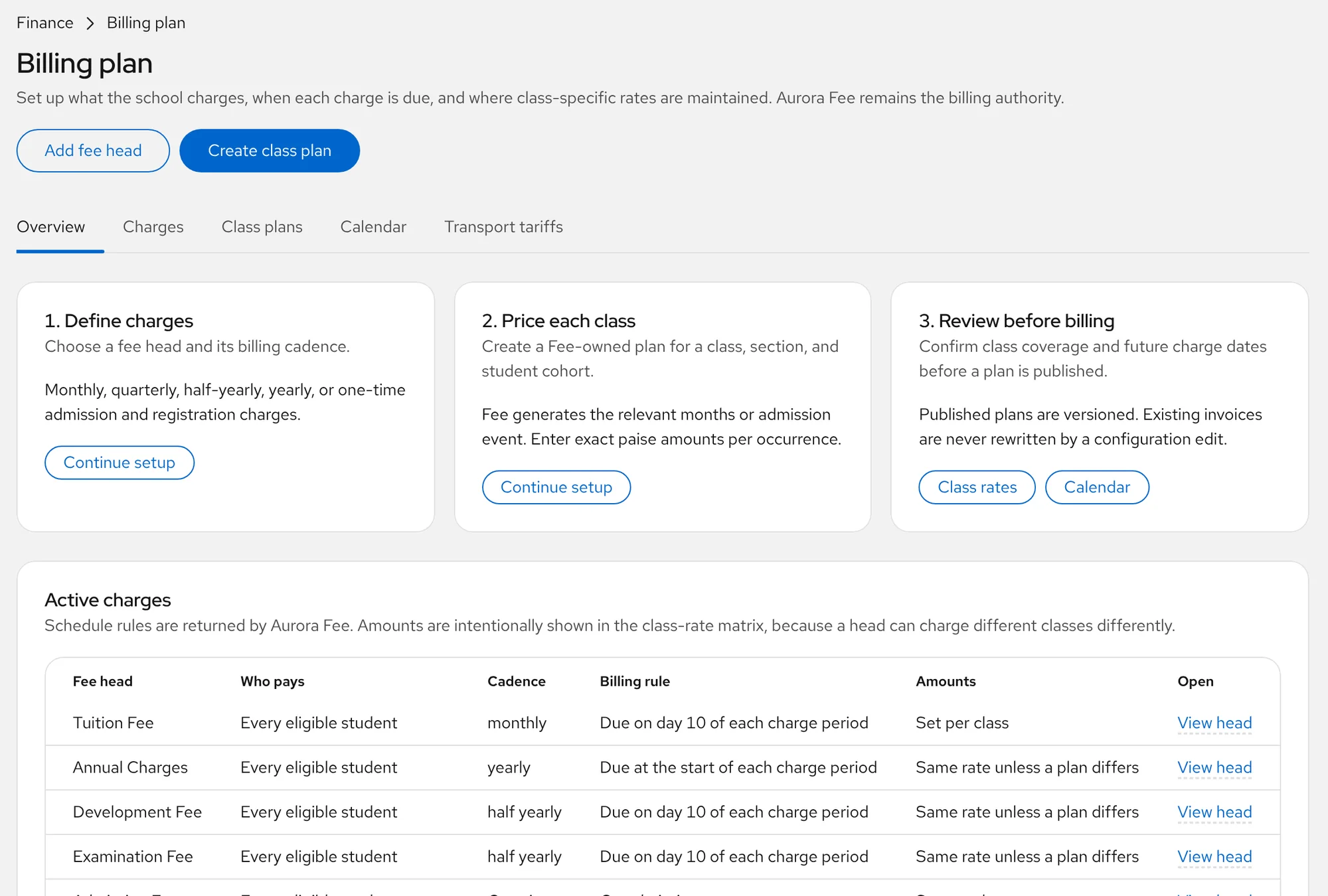
Fee setup In use
Set what the school charges, once
Define the charges, price each class, and review before billing. The screen is titled Billing plan.
- Charges, class plans, calendar and transport tariffs under one heading
- Published plans are versioned
- Existing invoices are never rewritten by a configuration change
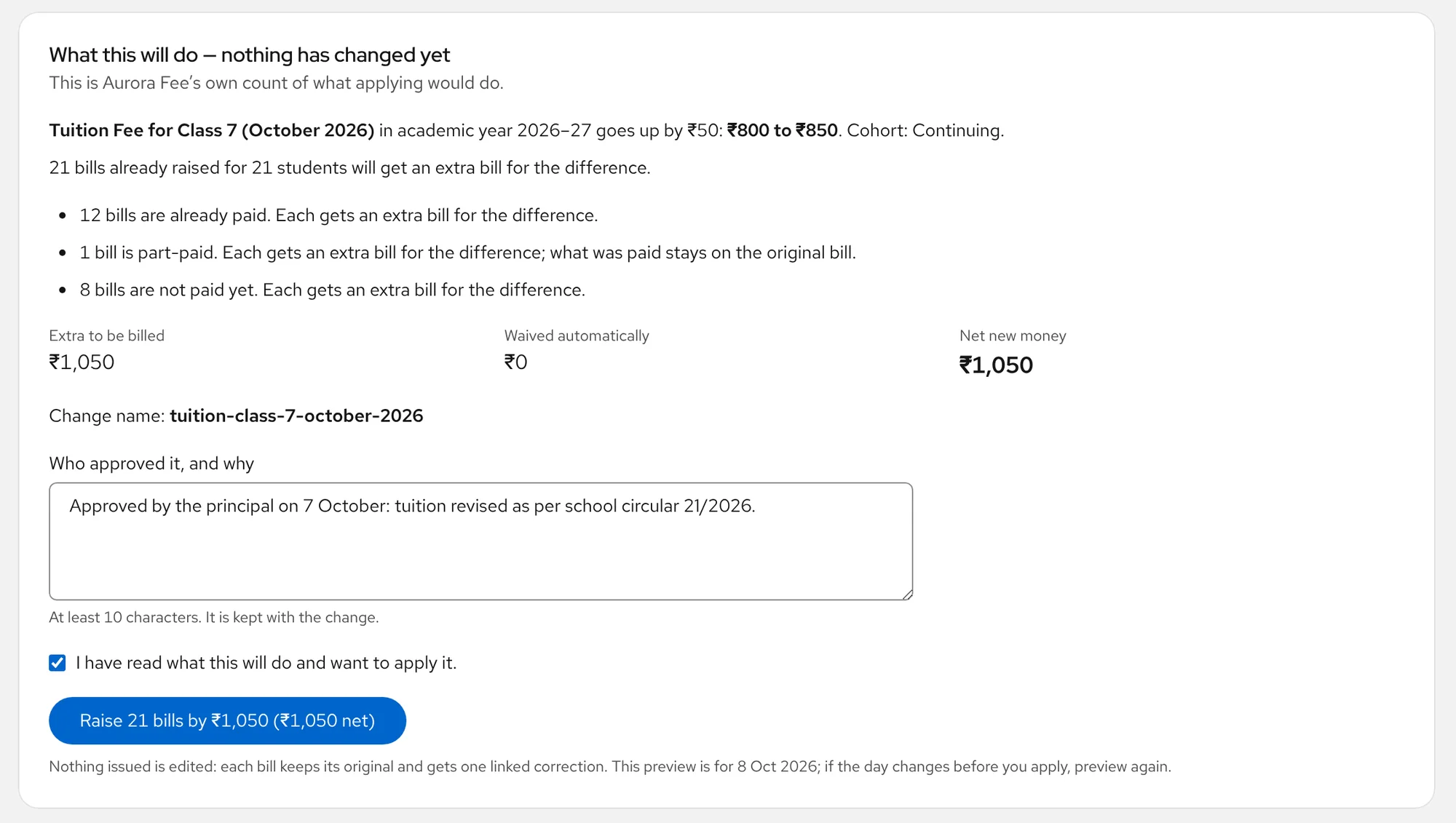
Price changes Built, rolling out
Change a fee mid-year with the preview first
Change a class fee, an admission fee or a transport fare, and see exactly what it would do before anything is written.
- The preview counts the bills already paid, part-paid and unpaid, and shows the extra to bill, what is waived and the net
- Applying needs a reason; each bill keeps its original and gets one linked correction
- If the day changes before you apply, you preview again
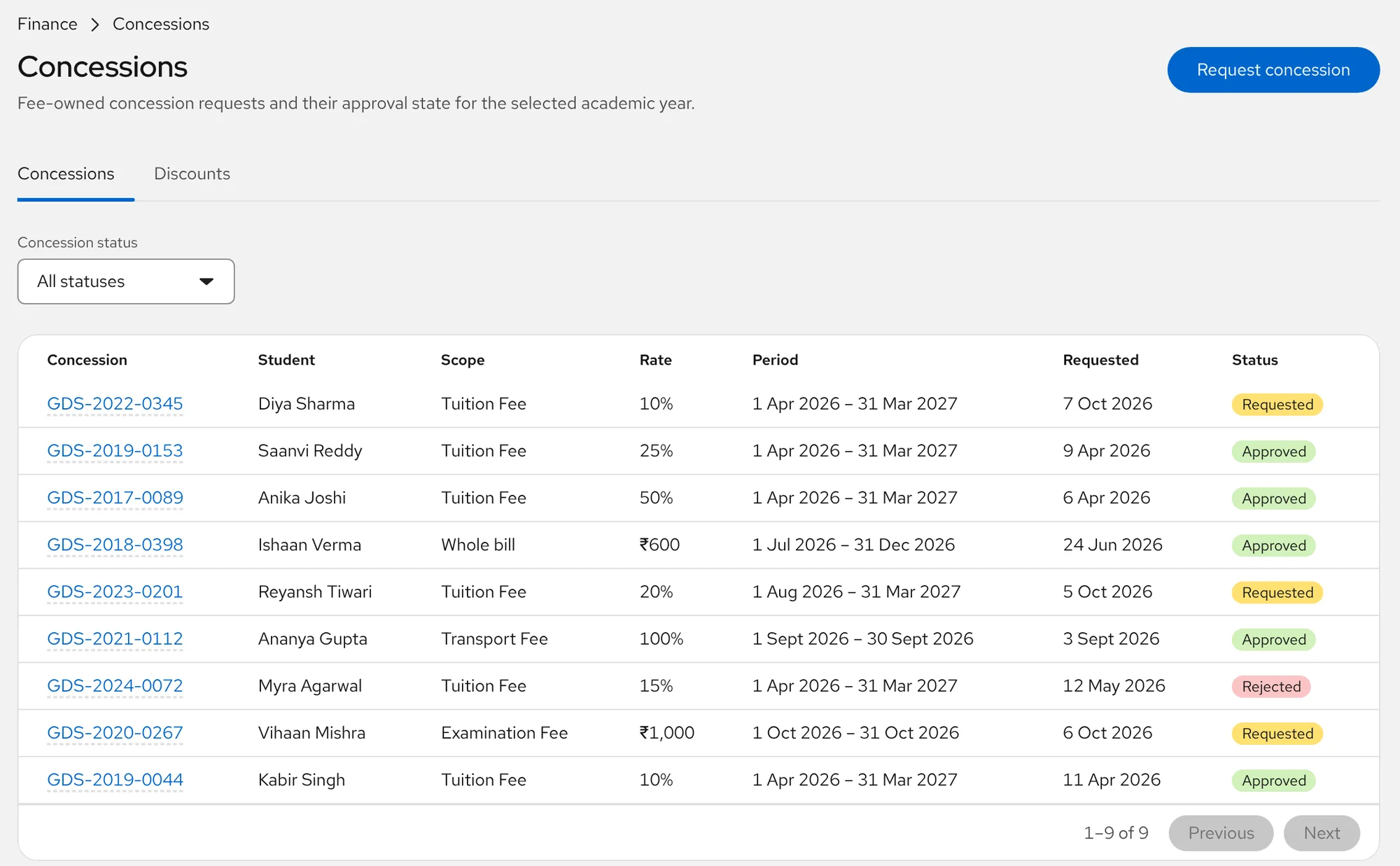
Concessions In use
Concessions with a decision on record
A percentage or a fixed amount, on the whole bill or on one fee head, for a stated period.
- Requested, approved or rejected, with the period it covers
- Sibling concessions are previewed, then applied in one step across verified siblings
- Discounts sit on a second tab
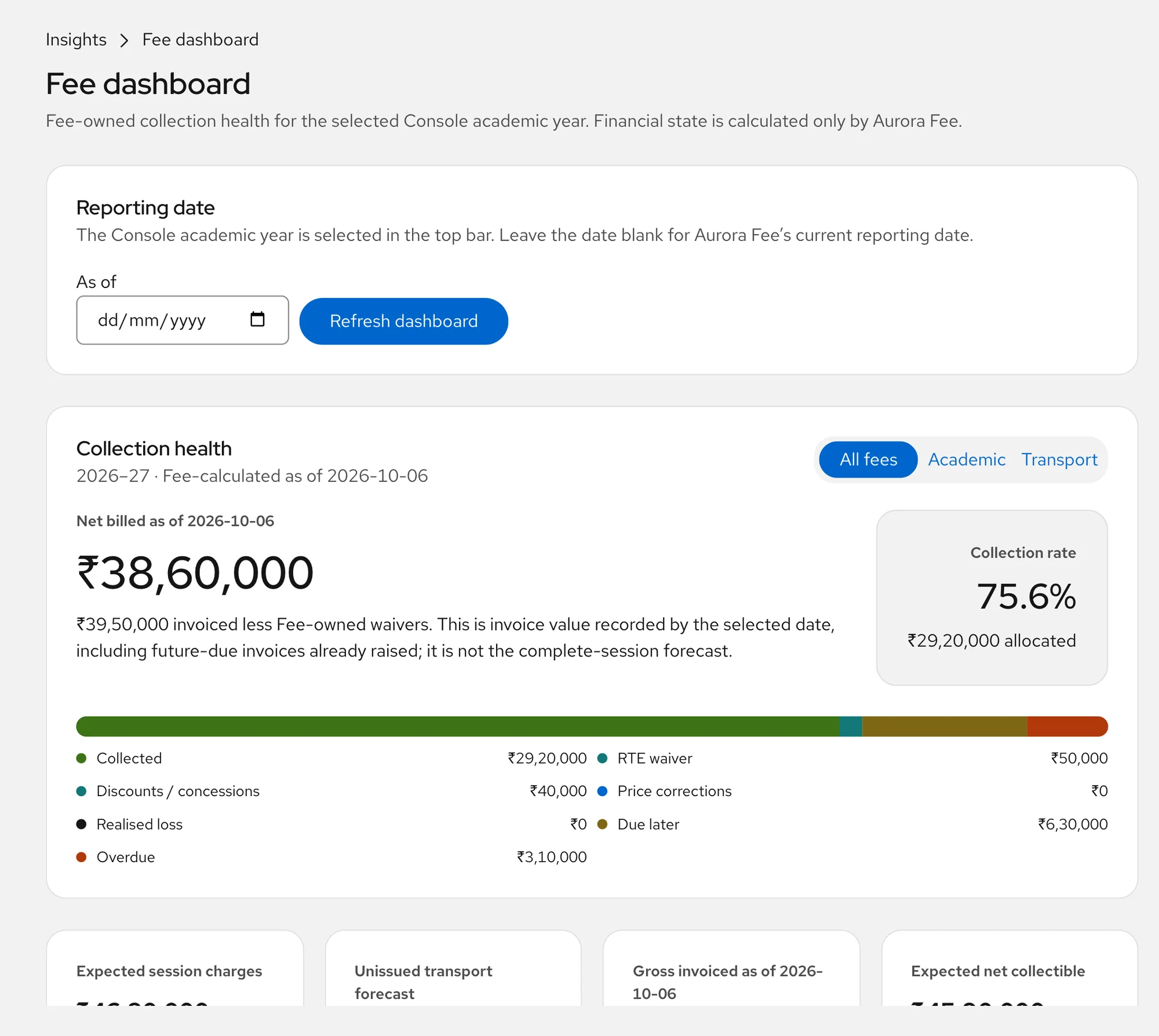
Fee dashboard In use
See how collection is going
The fee dashboard shows what has been billed, what has come in, and what is due later or overdue.
- Collection rate, collected, waivers, due later and overdue in one bar
- Choose all fees, academic fees or transport fees
- Calculated by Aurora Fee; the Console does not change payment allocation
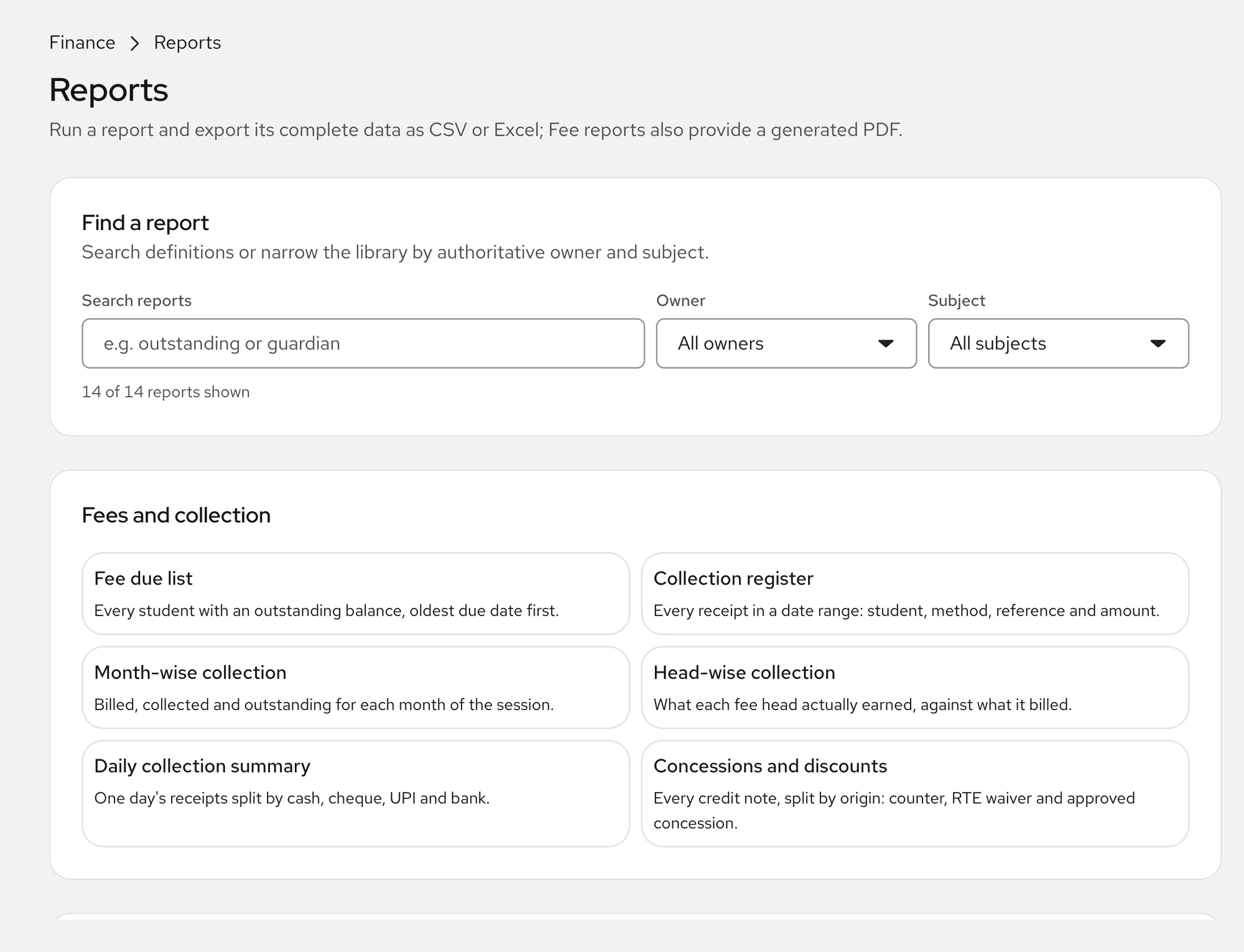
Reports In use
Reports a principal can read
A library of reports, each run in the Console and exported for the office.
- Fee due list, collection register, month-wise and head-wise collection, daily summary, concessions
- Search by name, or narrow by owner and subject
- Export as CSV or Excel; fee reports also give a PDF
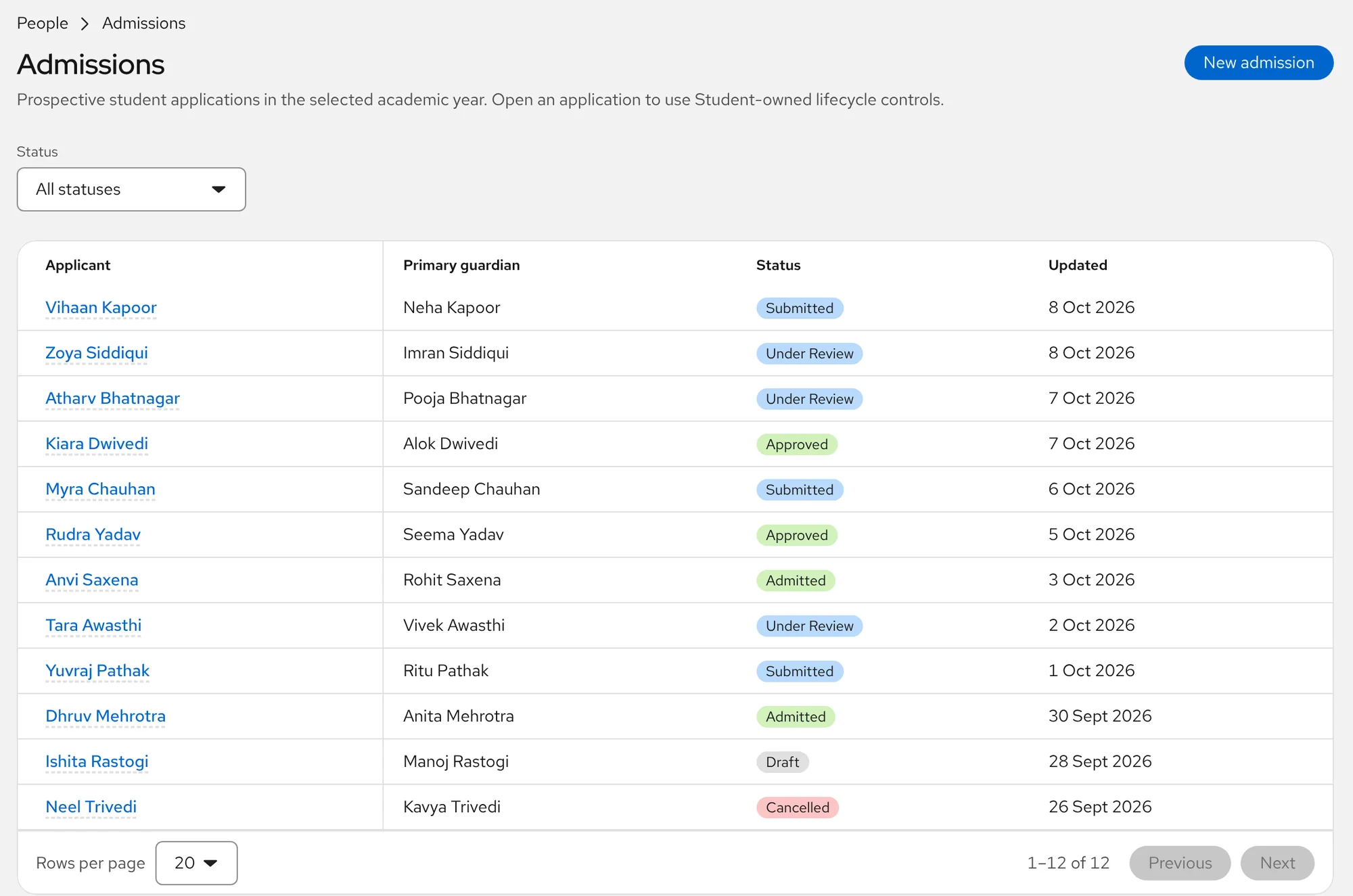
Admissions In use
From application to an admission number
Applications move from draft through review to approved and admitted. An approved application becomes a student.
- Draft, submitted, under review, approved, admitted or cancelled, in one list
- An admission number is reserved when an application is approved
- Early admission up to six months ahead of the session
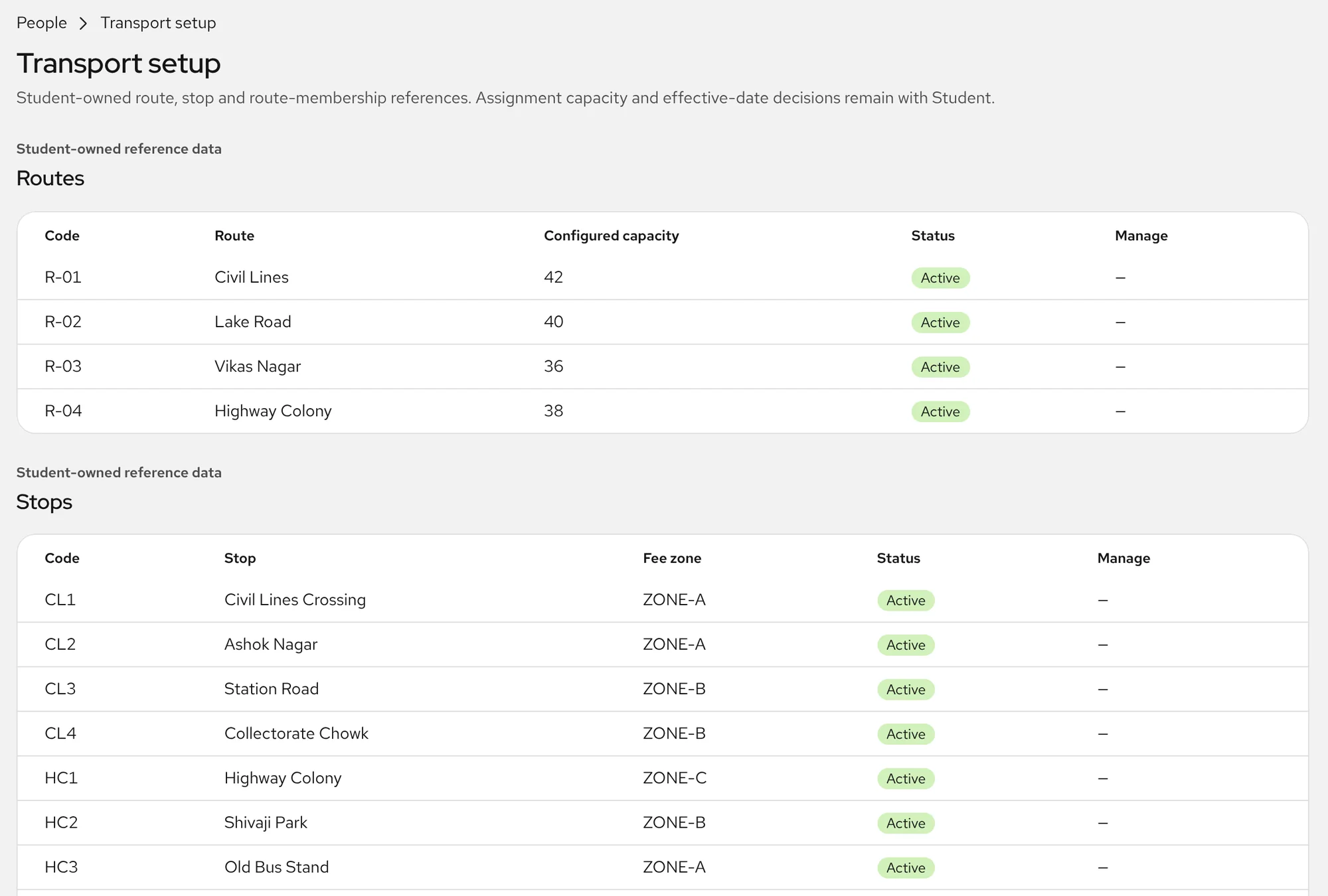
Transport In use
Routes, stops and fee zones
Set up the bus routes and their stops, and the fee zone of each stop. A student's transport starts and ends on dates.
- Routes with their capacity, and stops with their fee zones
- Billing follows the months a child actually rides
- Route changes keep their history
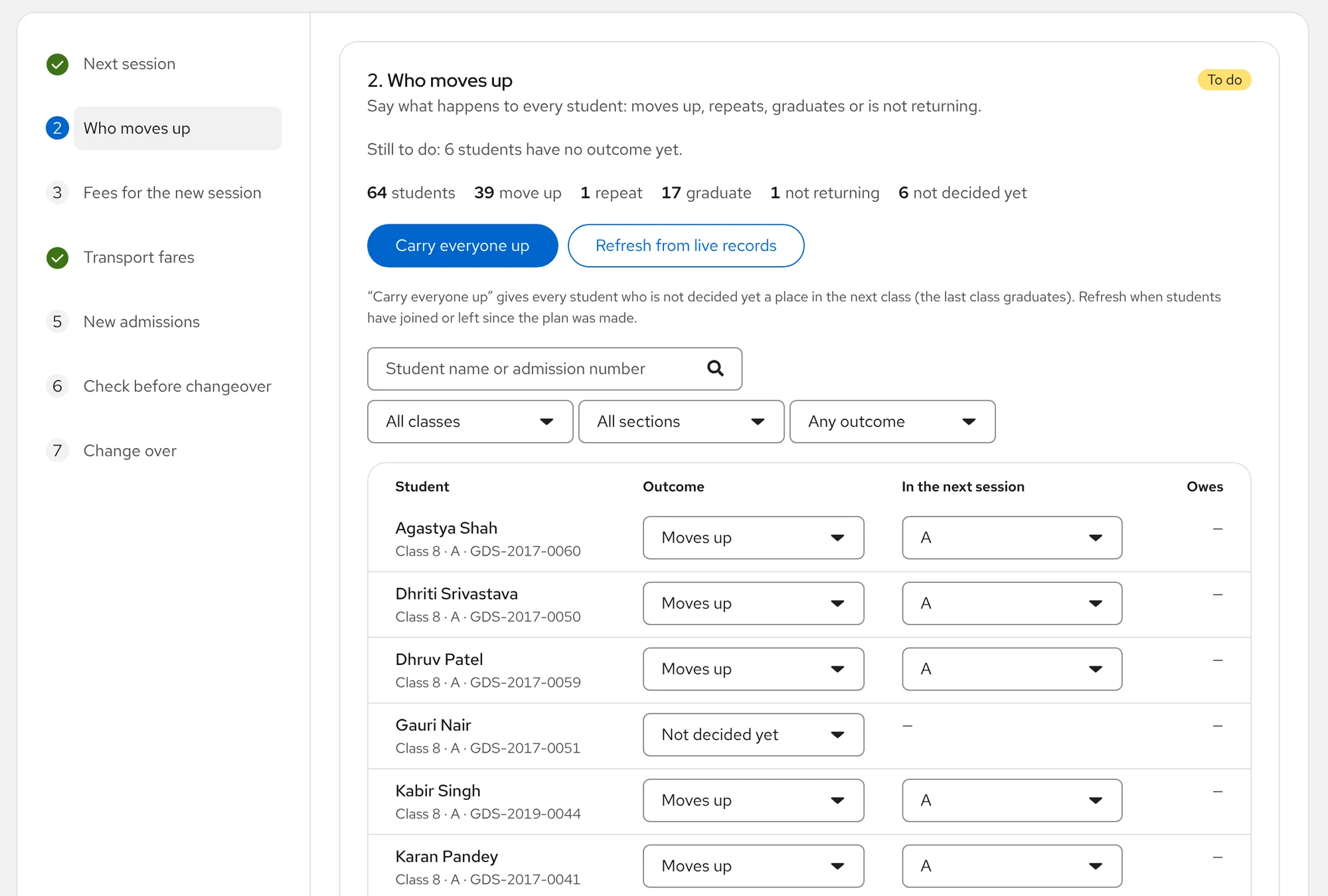
Year rollover Built, rolling out
Move to the next session without a scramble
A saved plan walks the office through seven steps. No student moves until the change over.
- Say what happens to every student: moves up, repeats, graduates or is not returning
- Fees and fares set for the new session are written to Fee straight away
- Dues warn; they never block. First real use is expected in March 2027
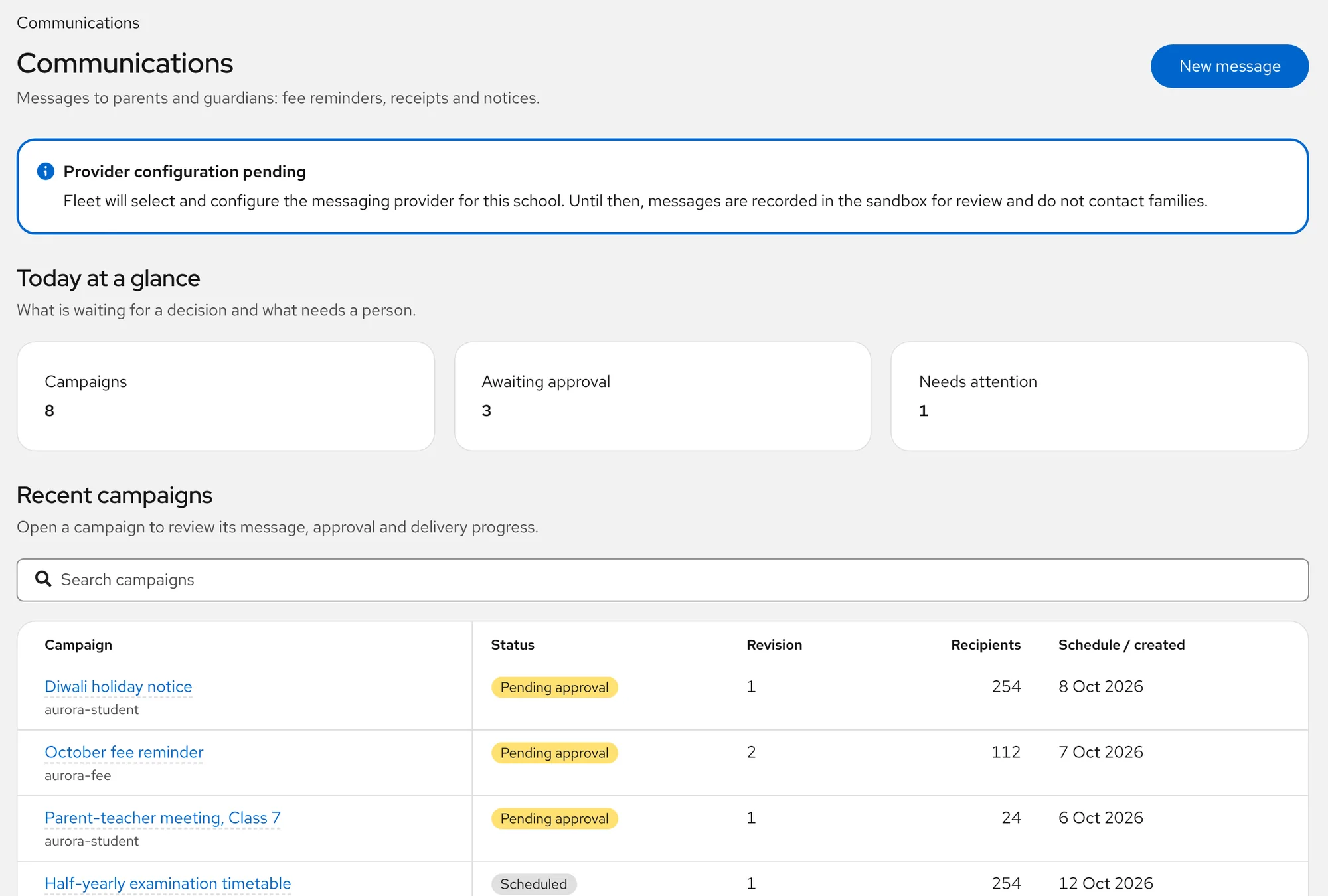
Messages to parents Screens built, sending next
Parent messages, approved by a person first
The approval, template, channel and consent screens are built. Sending to families is not switched on yet.
- Campaigns wait for your office to approve them
- Until a provider is connected, messages are recorded for review and do not contact families
- Templates, channels and consent, and usage and budget, have their own screens
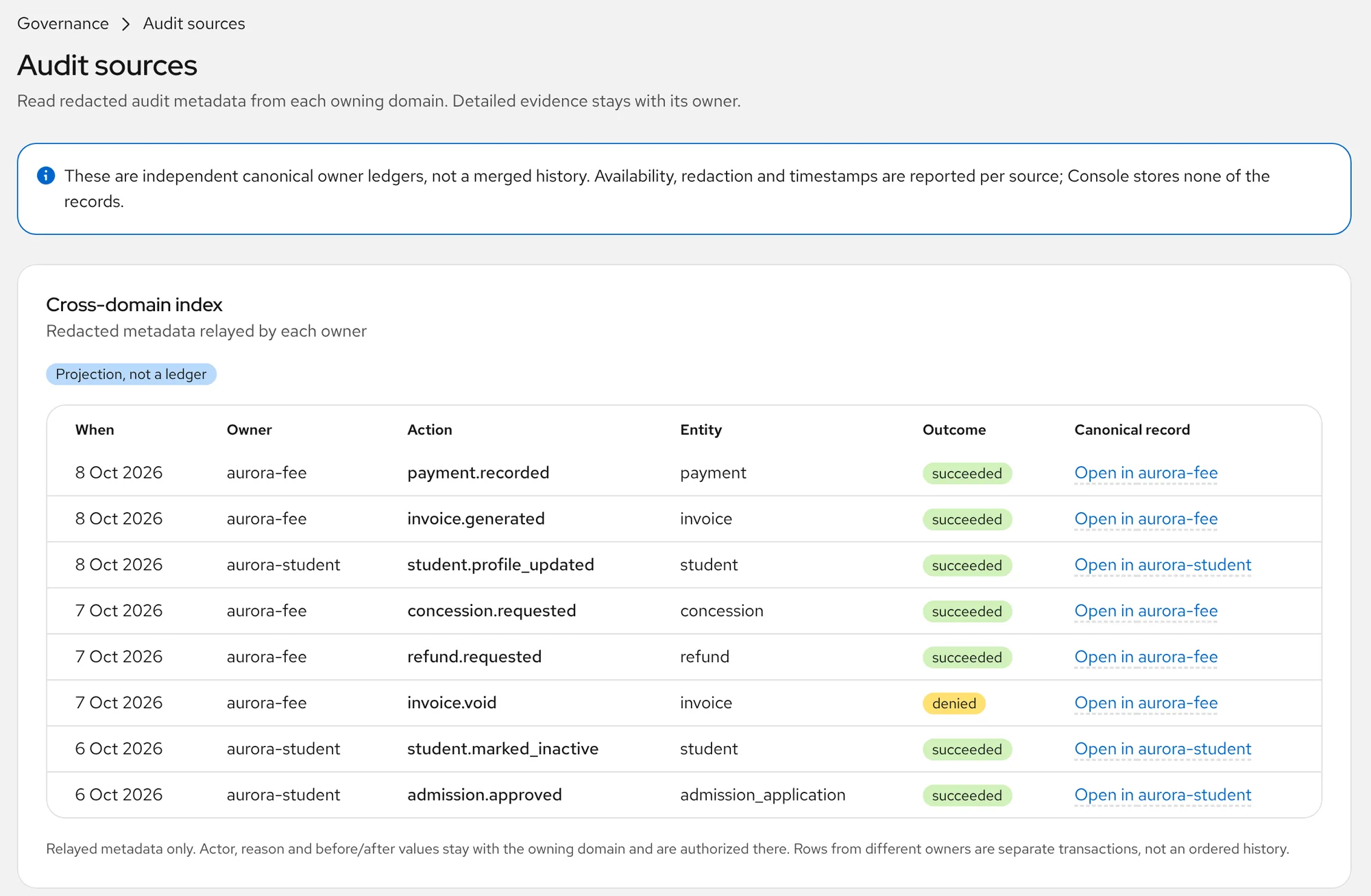
Audit In use
See what was recorded, and where
The Audit sources screen lists what each part of Aurora recorded, with a link to open the original record.
- Each part of Aurora keeps its own record; they are listed side by side, not merged into one history
- Who, why and before-and-after values stay with the part that owns them
- Financial changes are recorded in an append-only history
The screens are real, taken from Aurora Console with a fictional school and made-up names and amounts. Features still being rolled out, such as Academics and parent messages, are labelled where they appear on the site. See every feature and its status.
Ready to run your school with less paperwork?
See how Aurora can fit your existing school workflow. Book a free demo and we will show it with your own fee heads, classes and questions.